Before you start
An ERP connection updates products already in your catalog; by default it doesn't add new ones, because ERP exports rarely include product page addresses. So bring your catalog in first, from your shop's feed, a store import or a CSV file, and make sure your products carry the same product codes (SKU) or barcodes as your ERP. The product feed guide shows how to connect a shop so its codes come in by themselves, and the getting started guide covers everything after that.
You also need a place to publish the export where Pricebeeper can read it: a folder on your web hosting, or a file sharing link. The section on publishing the file below lists the options. As with every connection, you need a confirmed email address and the owner or admin role in the account.
How it works
Your ERP exports a file
A price list with product codes, barcodes, unit costs and selling prices, as CSV or as Pohoda's XML, saved on a schedule.
The file is published at an address
Your web hosting or a file sharing service makes it readable at a fixed URL, protected by a login or a long secret address.
Pricebeeper reads it every day
Each sync finds every product by code or barcode and updates its unit cost and your own price.
What the file should contain
A CSV file needs a header row and one product per line. Commas or semicolons both work, and the file may be saved in UTF-8 or the Windows encodings Czech systems use. Column names are matched without regard to case, accents or spaces, so Nákupní cena, nakupni cena and NAKUPNI_CENA all count.
| What | Column names recognised | Needed? |
|---|---|---|
| Product code | sku, code, kód, katalogové číslo, product code | Code or barcode |
| Barcode | ean, gtin, upc, barcode, čárový kód | Code or barcode |
| Unit cost | cost, purchase price, nákupní cena, pořizovací cena | For costs |
| Selling price | price, sale price, prodejní cena, cena s DPH, cena | For your prices |
| List price | regular price, msrp, doporučená cena, původní cena | No |
| Currency | currency, měna | No |
| Name | name, title, název | No |
| Page address | url, link, odkaz | Only to add products |
Amounts may use a decimal comma or point and spaces as thousands separators, such as 1 299,50. When the file names no currency, choose it in the connection's settings.
Publish the file at an address
Pricebeeper reads files over the web, from an address that starts with https://. Three common ways to get one:
- Your web hosting. Have the ERP save the export into a folder that your hosting publishes, or upload it there by FTP. Protect the folder with a username and password (most hosting control panels call this a password-protected directory) and enter the same login in the connection.
- A file sharing link. Save the export into a synced cloud folder and create a share link that downloads the file directly. With Dropbox, that is the share link with dl=1 at the end. Anyone with the link can read the file, so keep it to yourself.
- Your ERP partner's server. Many ERP partners host scheduled exports for their clients and can give you a protected address.
Keep the file name fixed, so each export replaces the last one at the same address. Pricebeeper refuses addresses on private networks, so a file shared only inside your office network isn't readable.
Pohoda
Pohoda can export the stock list (the Zásoby agenda) as XML through its data communication functions, and Pricebeeper reads that XML as it is: the code, EAN, name, purchase price and selling price of each stock card. A CSV export with the columns above works too.
To have the export run by itself, use the automated tasks in the Pohoda editions that offer them, or ask your Pohoda partner to schedule it. Point the export at the folder you publish, keep the file name fixed, and pick a time before your working day, so each morning Pricebeeper reads the costs and prices of the day before.
Pohoda's selling price may be with or without VAT depending on your settings. Use the same basis your shop shows customers, so your own price matches what competitors are compared with.
Money S3, S4 and S5
Money S3 exports data to XML in its own format, and with the XML data exchange module (XMLDE) an export can be transformed into a CSV with exactly the columns above. Export definitions can send the output to an FTP server, and from version 20.200 the output file name can be fixed in the definition, so each run replaces the last file at the same address on your hosting.
Money S4 and S5 have their own export and API options. Your Money partner can set up a scheduled CSV export of the price list with codes, EAN, purchase and selling prices; give them the column table above.
ABRA, Helios, Vario and other systems
Any ERP, inventory or point of sale system that can save a price list as CSV on a schedule works the same way. Export the product code or barcode with the unit cost and selling price, publish the file, and connect it. A spreadsheet works too: keep it in a synced cloud folder and save it as CSV.
ABRA Flexi, BaseLinker, Odoo and Microsoft Dynamics 365 Business Central also connect directly through their APIs, with no export to schedule: see the guides for ABRA Flexi, BaseLinker, Odoo and Business Central.
Connect it in Pricebeeper
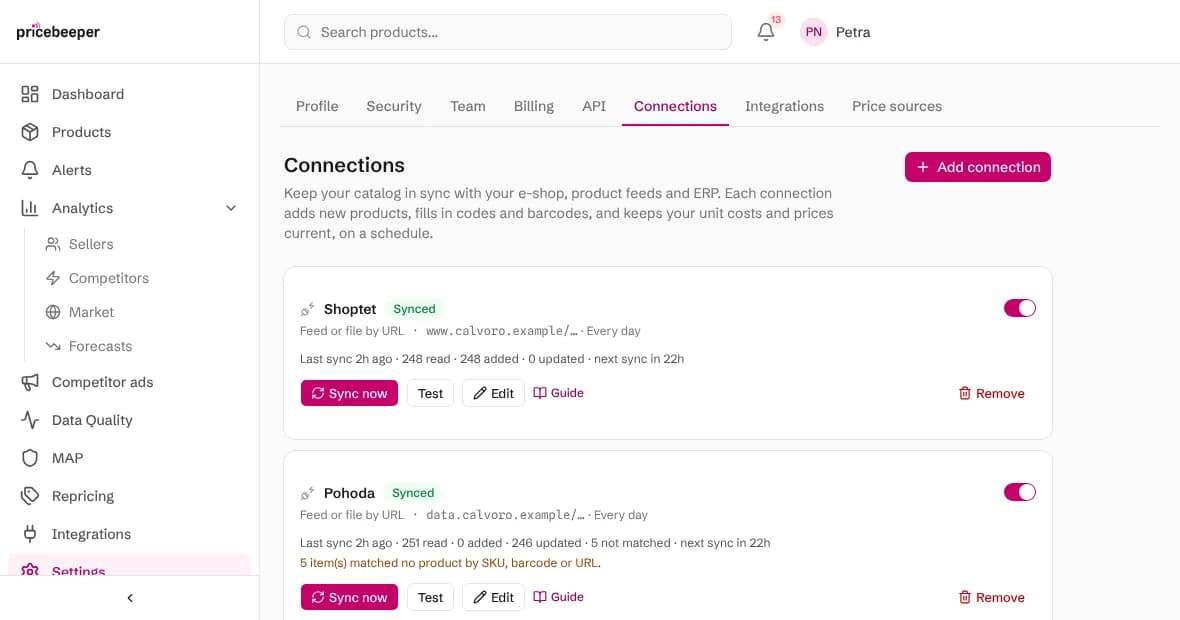
Open Connections
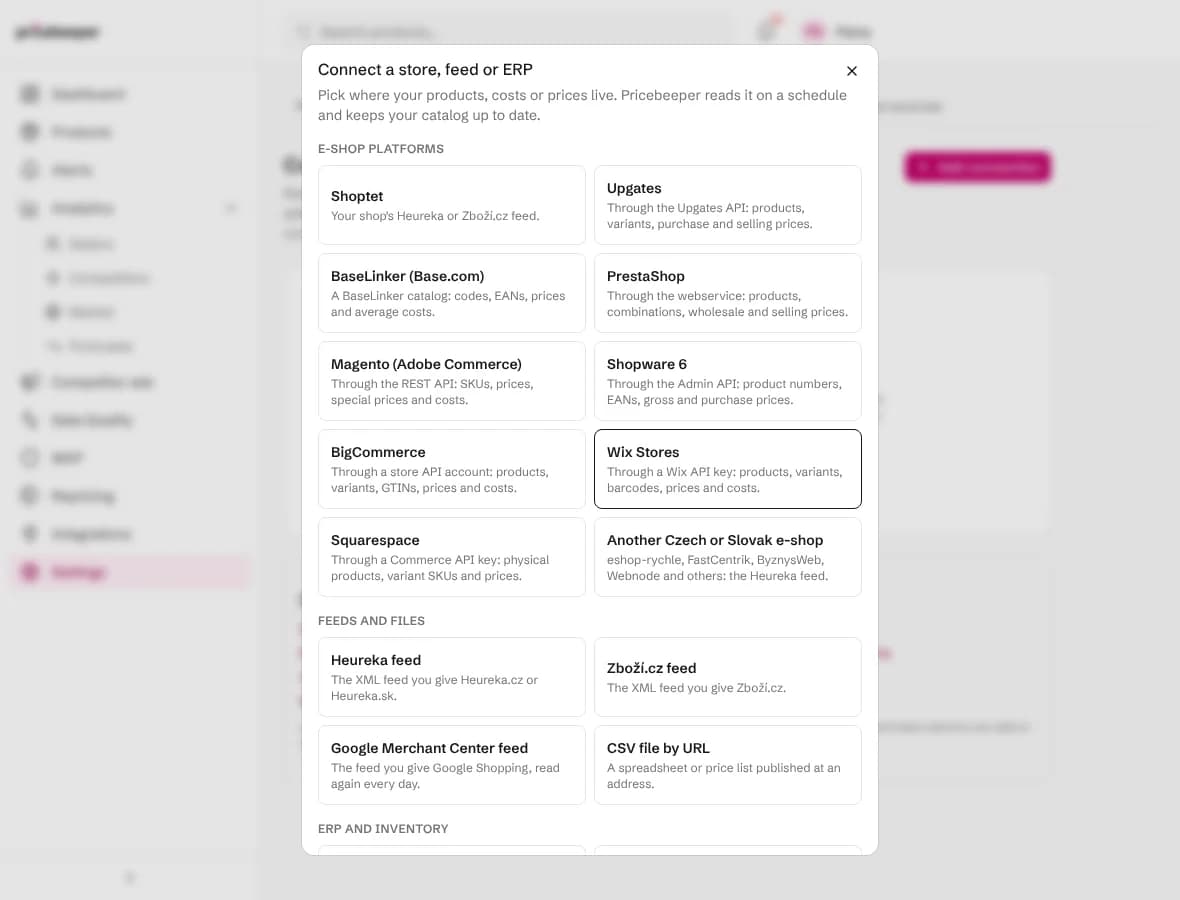
Go to Settings, Connections, choose Add connection, and pick your ERP under ERP and inventory (or Another ERP or inventory system).
Paste the file's address
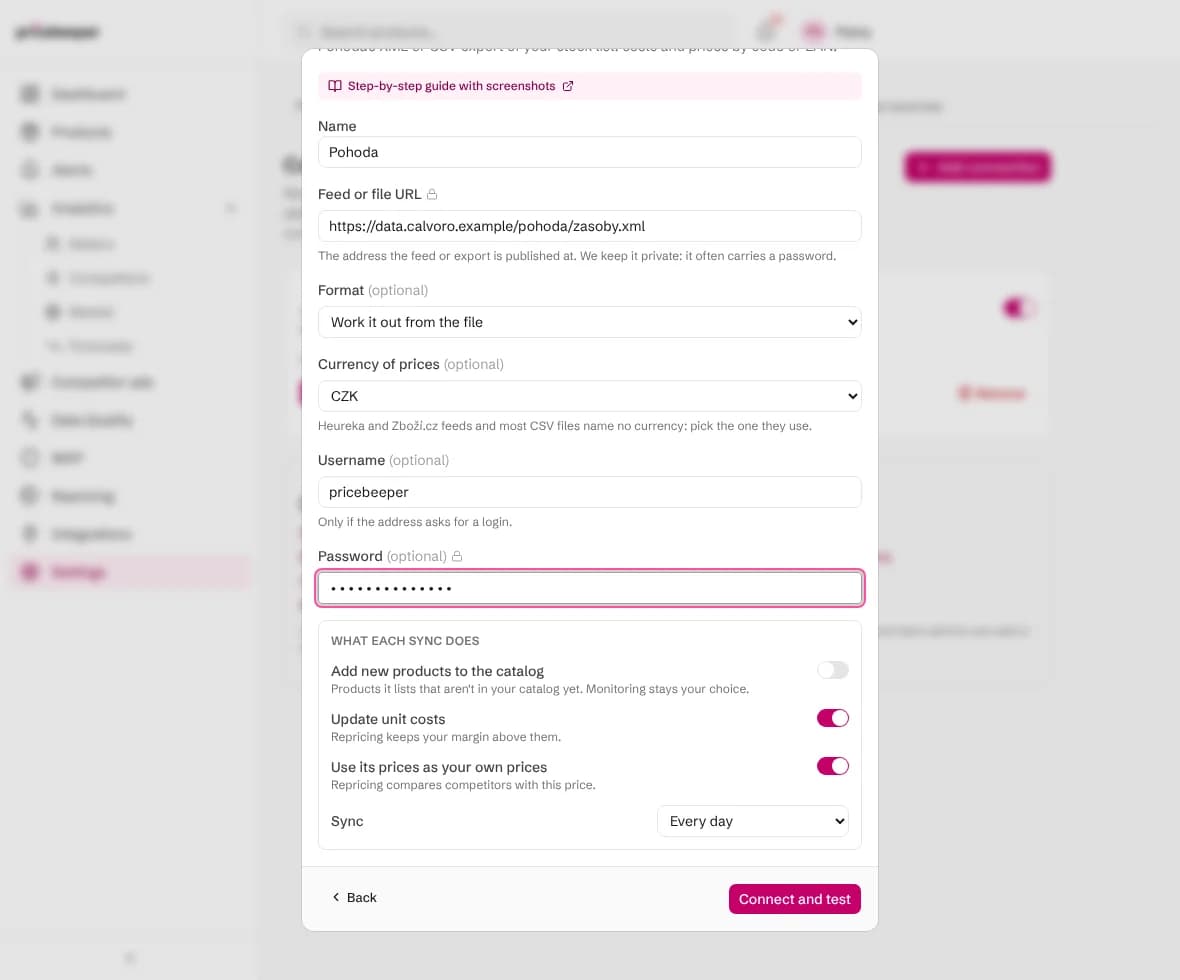
Paste the address into Feed or file URL, choose the currency, and enter the username and password if the address asks for a login.
Check what each sync does
For an ERP, Add new products starts switched off, and Update unit costs and Use its prices as your own prices start switched on. Switch on adding products only if your export includes page addresses.
Connect and test
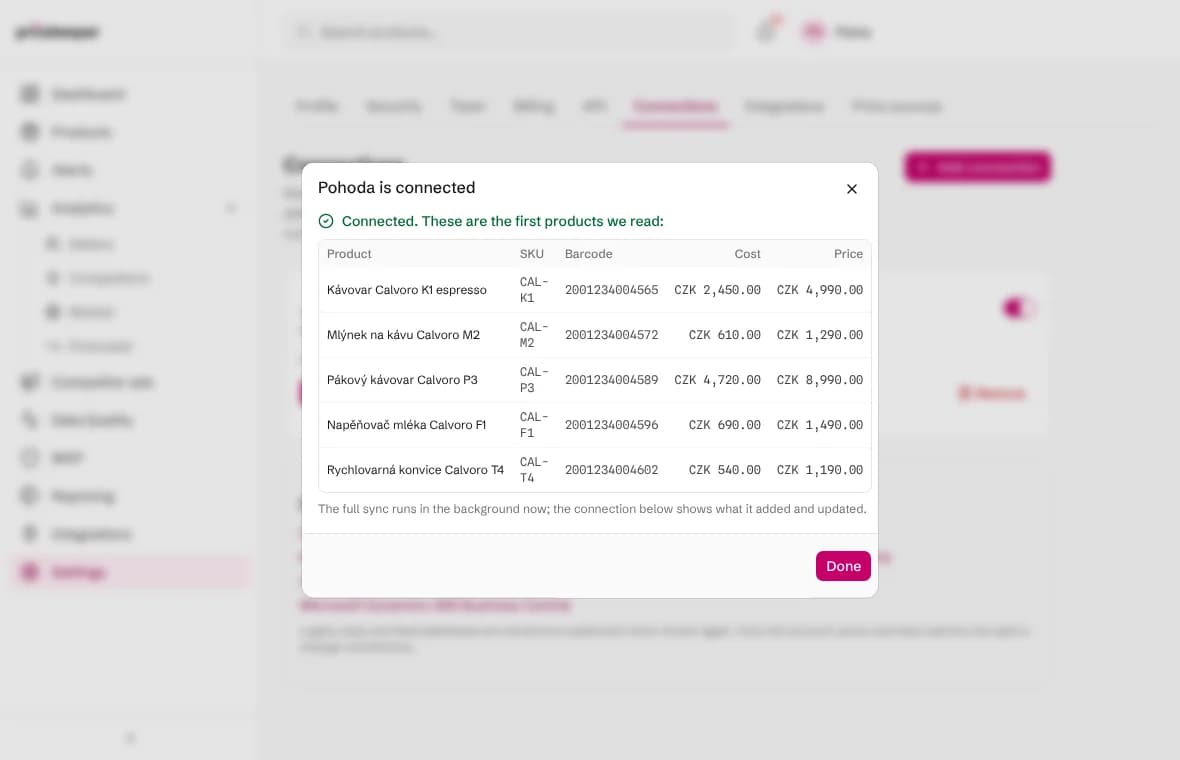
Choose Connect and test. The first products appear with their codes, costs and prices as Pricebeeper read them. Check that the costs and prices landed in the right columns, then let the full sync run.
What a sync changes
Each line of the export is matched to one product: first by product code, then by barcode. A code or barcode that several of your products share matches none of them, so a duplicate never gets the wrong cost.
- Unit cost replaces the cost Pricebeeper had, when the switch is on. Repricing's margin floor follows it at the next run.
- Your own price becomes the price competitors are compared with, marked as read from a connection.
- Codes and barcodes fill in where a product had none, which also helps Pricebeeper find the exact product at other sellers.
- Lines that match no product are counted and listed on the connection, so you can see which codes are missing from your catalog.

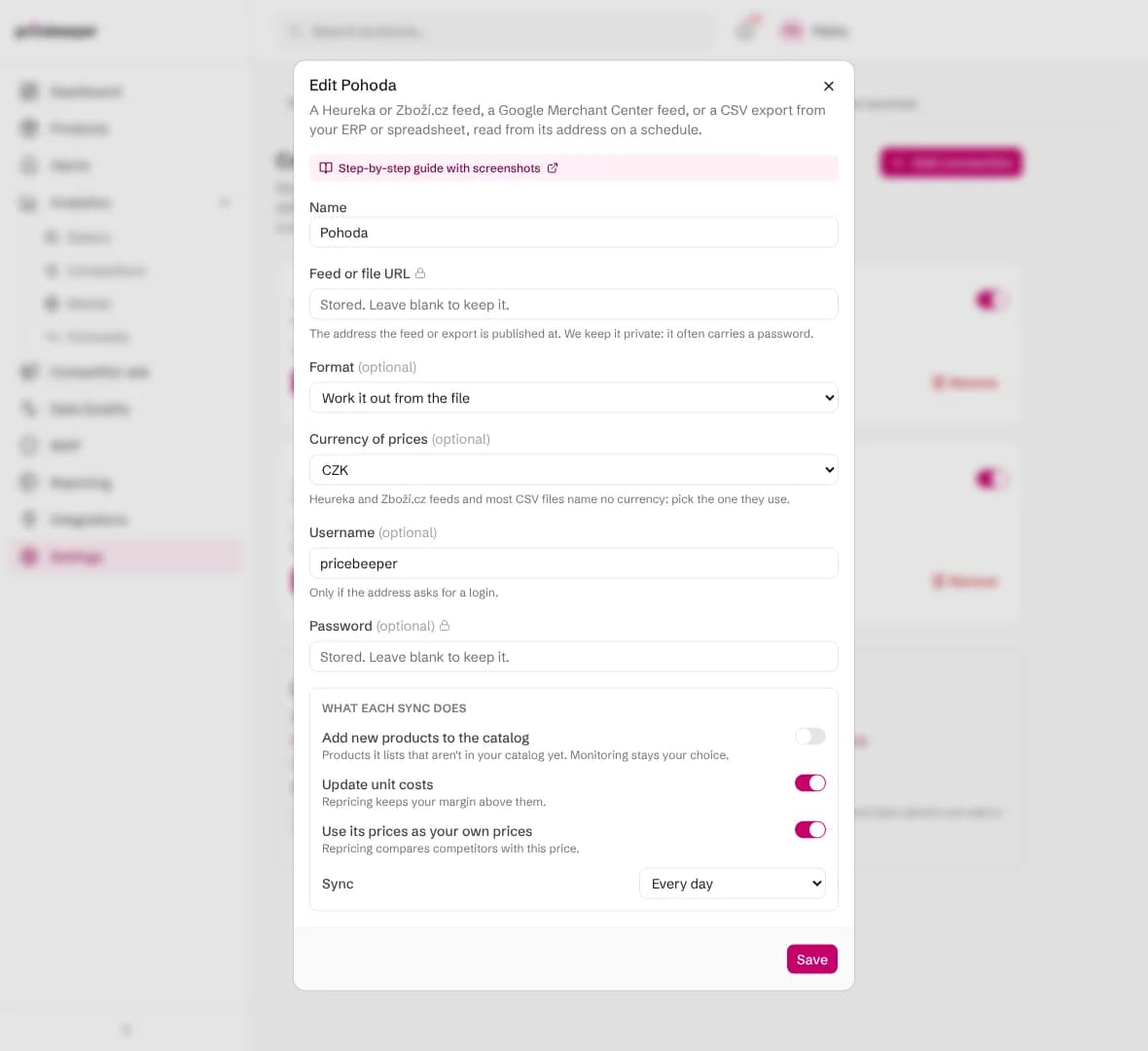
To change the address or the login later, choose Edit: the stored secrets stay as they are unless you type new ones. Costs and prices from a connection don't trigger alerts and don't change your shop. To have approved prices written back to your store, connect the store for repricing (Shopify or WooCommerce today); the repricing feature page explains the options.
When a sync fails or matches little
| What you see | What to do |
|---|---|
| Many lines not matched | Your catalog's products don't carry the ERP's codes. Connect your shop's feed first, or add a sku column to your CSV import, so codes match. |
| The data isn't in a format we read | The file needs a code or barcode column. Check the header row against the table above. |
| The login, key or token was refused | Edit the connection and enter the folder's username and password again. |
| We couldn't reach the address | Open the address in a browser outside your office network. A file only reachable inside it can't be read. |
| Prices look a hundred times too high | Check the decimal separator: an export with a dot for thousands and no decimals can be read wrongly. Export with a decimal comma or point. |
Questions people ask
Does Pricebeeper write anything back to my ERP?
No. An ERP connection only reads the export file. Approved prices are written only to stores you connect for repricing, and only when you or a rule you set allows it.
Can I use an ERP export and a shop feed together?
Yes, and it is the best setup: the feed brings products with their page addresses and codes, and the ERP export keeps costs current. Both update the same products, matched by code and barcode.
How often should the export run?
Once a day suits most shops; set the connection to sync every day and schedule the export an hour or two earlier. Weekly is enough if your costs rarely change.
Is my unit cost visible to anyone else?
No. Costs stay in your account and are used only to keep your own repricing above your margin floor. Team viewers see them like any other product field.
Related features
- 01RepricingRules turn competitor prices into suggested prices within your limits; you approve, and your store is updated.
- 02Catalog importLoad your whole catalog from Shopify, WooCommerce, a Merchant Center feed, CSV or URLs, then choose what to monitor.
- 03API and integrationsA REST API on every plan, CSV exports, Slack, Microsoft Teams and signed webhooks, and an MCP endpoint for AI agents.
Last reviewed