Before you start
A product feed is a file your shop publishes at a fixed web address, listing every product with its name, page address, price, product code and barcode. Price comparison sites read it to show your offers. Pricebeeper reads it for a different reason: to keep your catalog in step with your shop without imports by hand.
You need three things: a Pricebeeper account with a confirmed email address, the address (URL) of your feed, and the owner or admin role in the account, because connections hold credentials and only those roles can add them. If your feed is protected by a login, have that ready too.
Step 1: Find your feed's address
Your feed address usually ends in .xml and often contains a long code (a hash) that works like a password. Copy the whole address, including everything after a question mark. The sections below say where each platform keeps it. If you have already registered your shop with Heureka or Zboží.cz, there is a shortcut: both show the address they read in their seller administration, so you can copy it from there.
Which feed should you use? Any of them works. The Heureka feed is the most common in Czechia and Slovakia and carries the product code, barcode, manufacturer and price. The Google Merchant Center feed also carries a unit cost when your shop fills in the cost of goods field, which repricing uses to protect your margin.
Shoptet
Shoptet publishes feeds for the price comparison sites from the Marketing part of its administration. Open the settings for Heureka.cz (or Zboží.cz), switch the export on if it isn't yet, and copy the feed address shown there. Shoptet refreshes the file itself, so the address stays the same and always holds your current catalog.
Shoptet also offers its own product export in XML. Pricebeeper reads that format too, including the product code and the purchase price when your export includes them. If the purchase price matters to you for repricing, the Shoptet export with the purchase price column is the better choice; otherwise the Heureka feed is enough.
If you can't find the address, Shoptet's support can tell you where it is in your version of the administration, or copy it from your Heureka seller account as described above.
Upgates
Upgates generates feeds for price comparison sites from its administration. Find the export for Heureka.cz (or Zboží.cz) among the shop's exports and feeds, and copy its address. The Heureka export is the safe choice: it includes the product code, barcode and price of every product and variant.
Upgates also has an API, which adds purchase prices to everything the feed carries. The Upgates guide shows how to connect it instead; you can switch at any time without losing anything, because products are matched by code and barcode.
eshop-rychle, FastCentrik, ByznysWeb, Webnode and others
Any platform that can publish a Heureka, Zboží.cz or Google Merchant Center feed works the same way. Look for the export or feed settings for price comparison sites, or for Google Shopping, in your shop's administration, and copy the feed address. Many platforms list these under marketing, exports or integrations.
WooCommerce, PrestaShop and Magento shops usually create feeds with a plugin or module (for example a Heureka or Google Shopping feed plugin). Copy the address the plugin publishes. Shopify and WooCommerce shops can also use the store imports on the Import page instead; the Shopify app keeps a Shopify catalog in sync by itself.
Heureka and Zboží.cz feeds
If your shop is listed on Heureka.cz, Heureka.sk or Zboží.cz, the feed is already registered there. Sign in to the seller administration of the site and open the settings of your shop's feed: the address it reads is shown there. Copy it as it is.
Heureka feeds name no currency. Pricebeeper assumes Czech crowns for a feed on a .cz address and euros for one on a .sk address; choose the currency in the connection's settings when that guess is wrong.
Google Merchant Center feed
If Google fetches your feed on a schedule, the address is in Merchant Center: open the settings of your product data source and copy the file address it fetches. If your shop sends products to Google through an app or a direct integration instead of a file, ask the app for a feed address, or use the Heureka feed.
Google feeds carry a currency with every price, and a sale price when one applies. Pricebeeper takes the sale price as your current price and the regular price as the list price, and reads cost of goods sold as the unit cost.
Step 2: Connect it in Pricebeeper
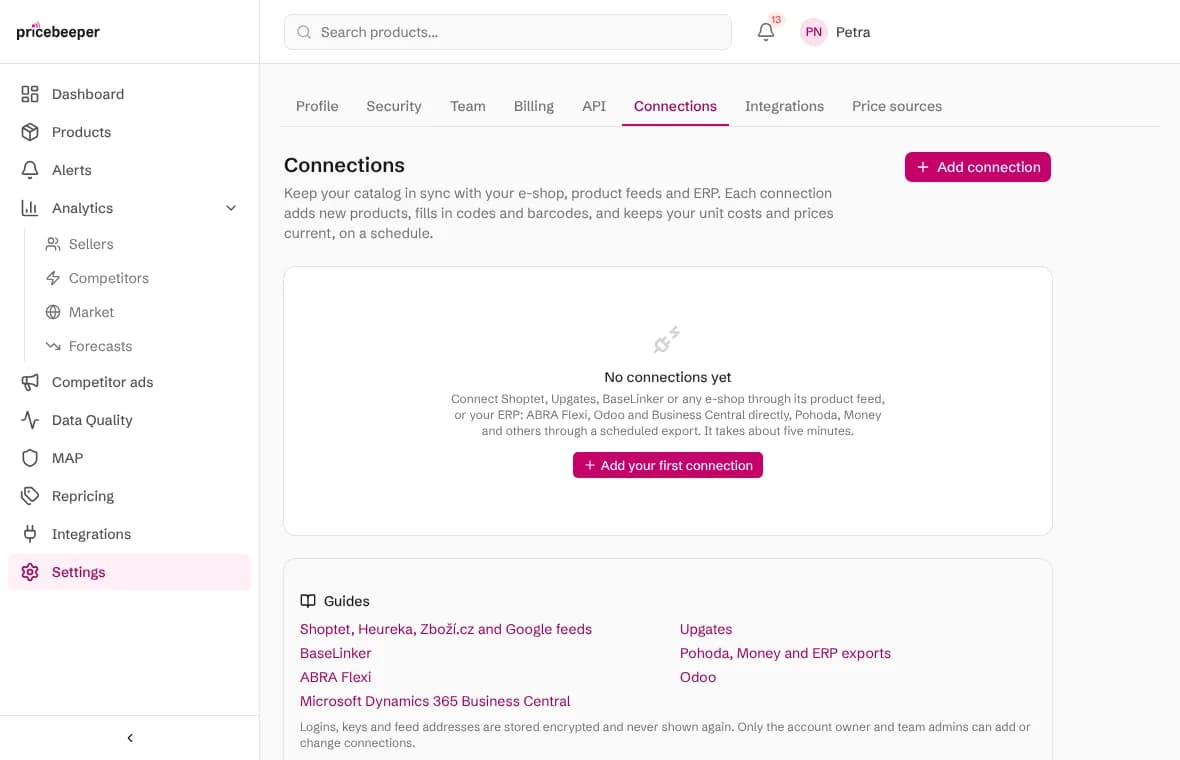
Open Connections
Go to Settings, Connections and choose Add connection. You can also get there from Products, Import, under Keep your catalog in sync automatically.
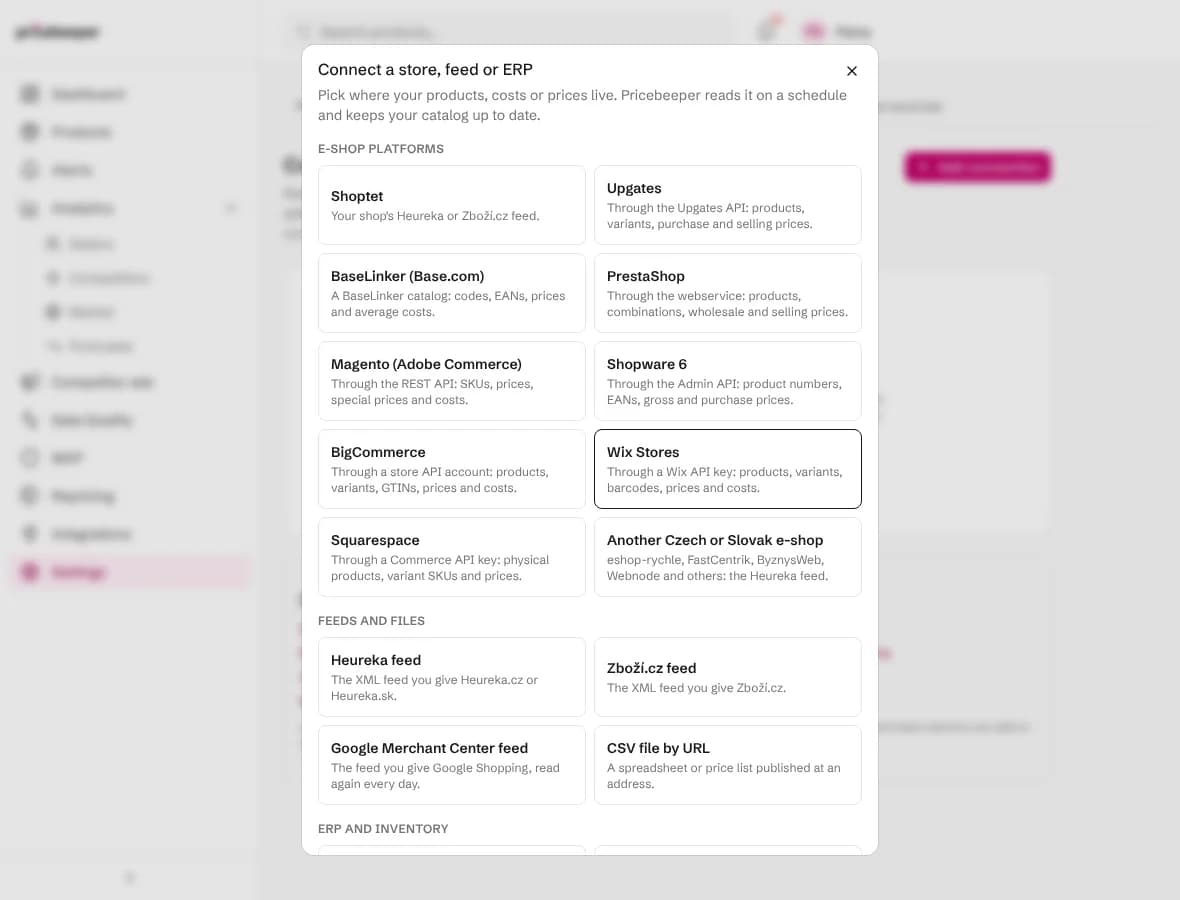
Pick your platform
Choose your shop's platform, or the feed type you have. The choice fills in the right format, names the connection and links to the matching part of this guide.
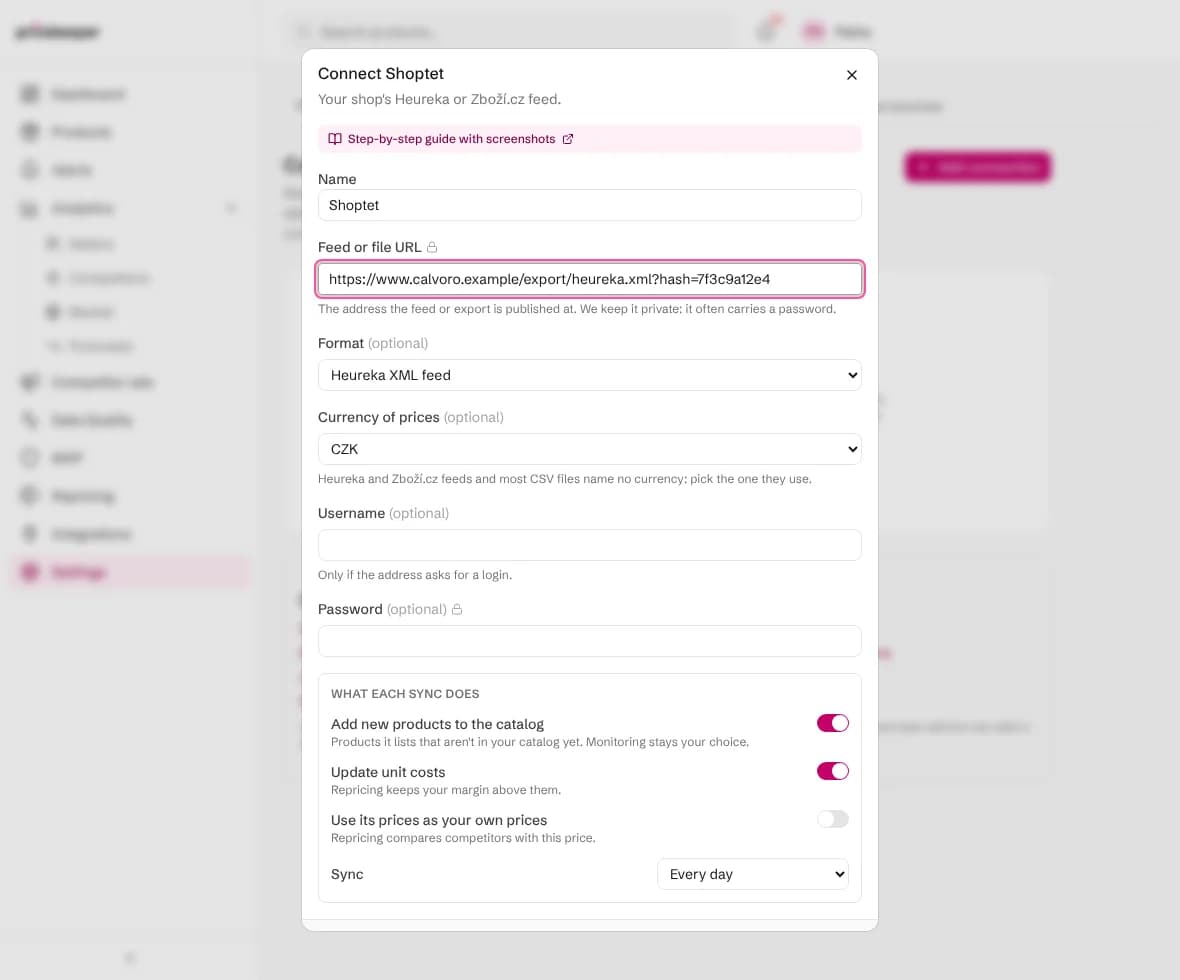
Paste the feed address
Paste the address into Feed or file URL. Leave the format on Work it out from the file unless you know better, and pick the currency if your feed names none. Fill in the username and password only if the address asks for a login.
Choose what each sync does
Add new products keeps your catalog complete. Update unit costs keeps repricing's margin floor current. Use its prices as your own prices tells repricing what you charge today. Then choose how often to sync: every day suits most shops.
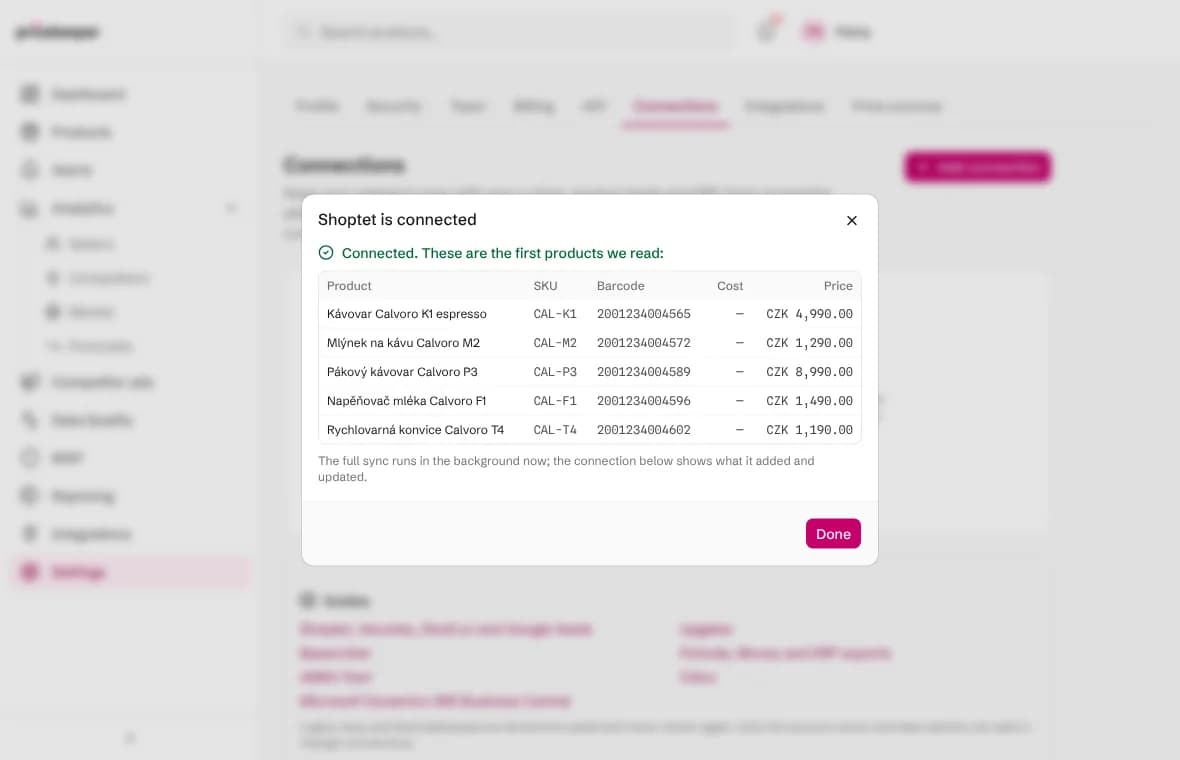
Connect and test
Choose Connect and test. Pricebeeper reads the start of the feed and shows the first products as it understood them, so you can check the names, codes and prices before anything changes. The full sync then runs in the background.
What each sync does
Every sync reads the whole feed and finds the product each line describes. It looks for a product this connection added before, then a product with the same code (SKU), then one with the same barcode, then one with the same page address. A code or barcode shared by several of your products matches none of them, so nothing is updated by mistake.
- A product it finds gets the unit cost (when the switch is on), your own price (when that switch is on), and any code, barcode, brand or part number it was missing. Names you edited in Pricebeeper are left alone.
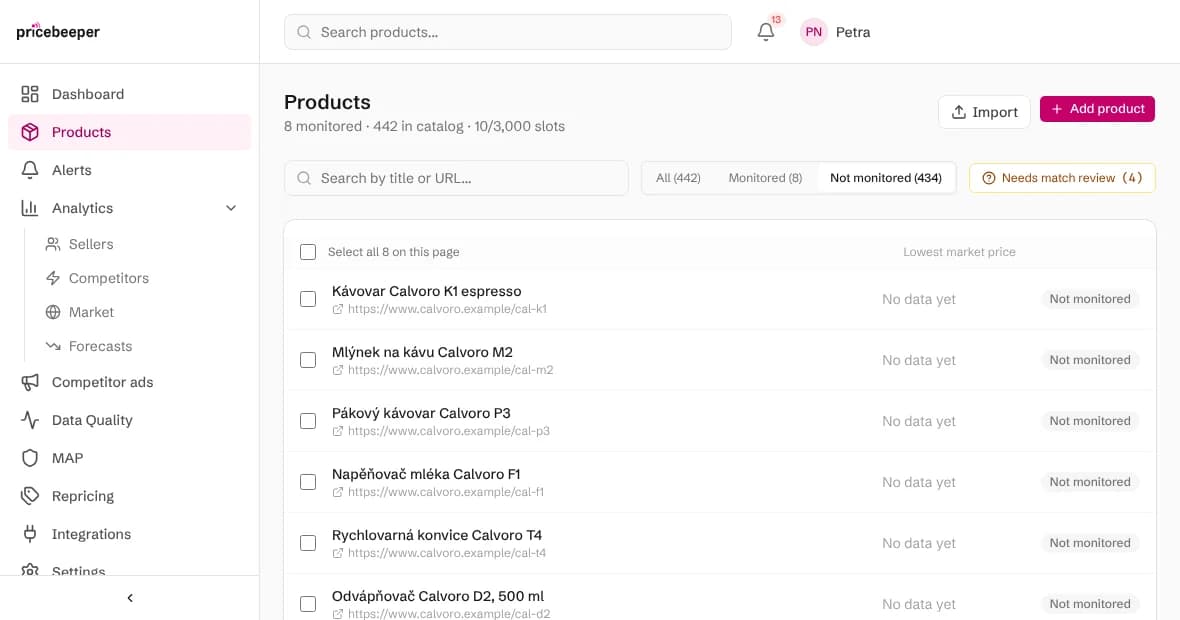
- A product it doesn't find is added to your catalog when the line has a page address and Add new products is on. It isn't monitored until you attach it to a region.
- Lines it can't place are counted as not matched and listed on the connection, so you can see what was left out.
Syncs never delete products. When a product disappears from your feed, it stays in Pricebeeper with its history; remove it yourself if you no longer sell it.
Step 3: Check the results
Each connection shows when it last synced and what it did: how many products it read, added and updated, and how many lines it couldn't place. Sync now runs it straight away, Test reads the first products again, and the switch pauses it. The next sync time is shown under the counts.

New products appear under Products, filtered as not monitored. Select the ones to watch and choose Attach to region: the getting started guide explains slots, regions and what happens next, and plans and pricing lists how many slots each plan has.
Want costs from your accounting system too? Add your ERP as a second connection: the ERP export guide shows how, and repricing uses both the cost and your own price.
When a sync fails
| Message | What to do |
|---|---|
| The login, key or token was refused | Edit the connection and enter the username and password again, or copy the feed address again if it carries a code that changed. |
| Nothing was found at that address | Copy the feed address again from your platform: it may have changed when the export was switched off and on. |
| The data isn't in a format we read | Check that the address opens the feed file itself, not a web page about it. |
| The file is larger than we read in one go | Ask your platform for a feed with fewer fields, or split the catalog into two feeds and connect both. |
| We couldn't reach the address | Open the address in your browser. If it works there, the server may block automated reading; your platform's support can allow it. |
After ten failed scheduled syncs in a row, a connection pauses itself so it stops retrying a broken address. Fix the setting, then switch it back on.
Questions people ask
Does a connection use my plan's slots?
No. Products a connection adds join your catalog, which has no size limit on any plan. Slots are used only when you attach a product to a region to monitor it.
Is my feed address safe with Pricebeeper?
It is stored encrypted and never shown again, not even to you; the connection shows only the shop's domain. Only the account owner and team admins can add or change connections, and a password reset that confirms the address pauses them.
Can I connect more than one feed?
Yes, up to ten connections per account, for example a Czech and a Slovak feed, or a feed and an ERP export. Products are matched by code and barcode, so two connections that describe the same product update one product.
What if my shop changes a product's price?
With Use its prices as your own prices switched on, the next sync updates your own price in Pricebeeper, and repricing compares competitors with it. Choose a daily sync for prices that change often.
Can I connect a feed that needs a login?
Yes. Fill in the username and password in the connection. They are sent only to the address you entered, never to another server it redirects to.
Related features
- 01Catalog importLoad your whole catalog from Shopify, WooCommerce, a Merchant Center feed, CSV or URLs, then choose what to monitor.
- 02Barcode and exact product matchingMatch each product to its Google Shopping product and Amazon ASIN by barcode, then track the sellers of that item.
- 03RepricingRules turn competitor prices into suggested prices within your limits; you approve, and your store is updated.
- 04Shopify appPricebeeper inside your Shopify admin: catalog sync, alerts, repricing writes and a plan on your Shopify bill.
Last reviewed