Before you start
You need someone who can register applications in your organisation's Microsoft Entra ID (formerly Azure Active Directory) and grant admin consent, a Business Central user with the rights to manage Microsoft Entra applications, and the owner or admin role in your Pricebeeper account.
Business Central items have no web page addresses, so this connection updates products already in your Pricebeeper catalog and doesn't add new ones. Bring your products in first, from your shop's product feed or a store import, with the same item numbers or GTINs.
Step 1: Register an application in Microsoft Entra ID
Create the registration
In the Microsoft Entra admin center, open App registrations and choose New registration. Name it Pricebeeper, keep it to accounts in your organisation only, and register it.
Copy the IDs
On the application's overview, copy the Application (client) ID and the Directory (tenant) ID.
Add the Business Central permission
Under API permissions, add a permission for Dynamics 365 Business Central, choose Application permissions, select API.ReadWrite.All, and grant admin consent for your organisation.
Create a client secret
Under Certificates & secrets, create a new client secret and copy its value straight away; Entra shows it only once. Note when it expires, and renew it before then.
The application permission lets the app call Business Central's API, but what it may actually see is decided in Business Central itself, in the next step. That is where you keep it read only.
Step 2: Allow the application in Business Central
Open Microsoft Entra Applications
In Business Central, search for Microsoft Entra Applications and open the page.
Add the application
Choose New, paste the Application (client) ID into Client ID, describe it as Pricebeeper, and set State to Enabled.
Give it read permissions
Assign permission sets that let it read items in the company, such as D365 READ, and nothing that writes. Applications can't receive SUPER.
Step 3: Connect it in Pricebeeper
Open Connections
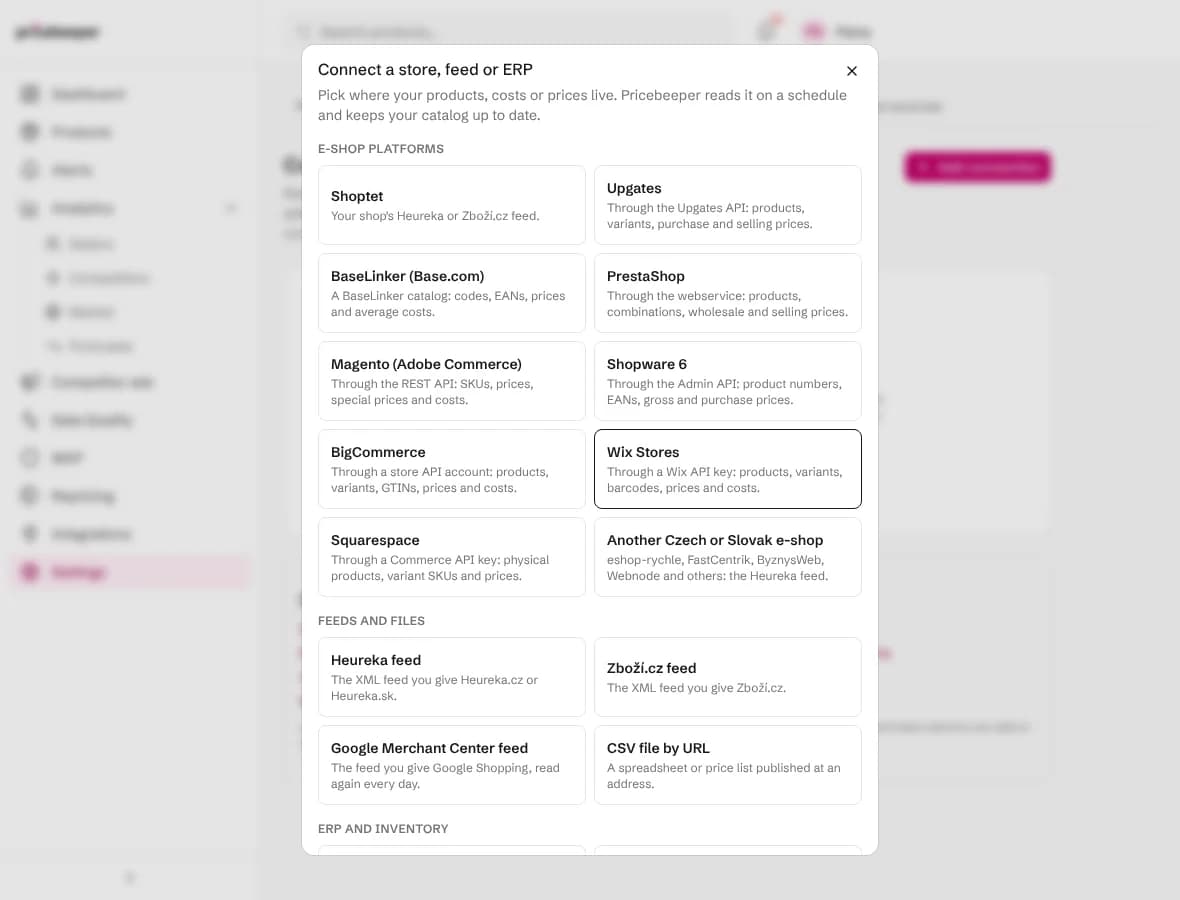
In Pricebeeper, go to Settings, Connections, choose Add connection and pick Microsoft Dynamics 365 Business Central.
Fill in the access details
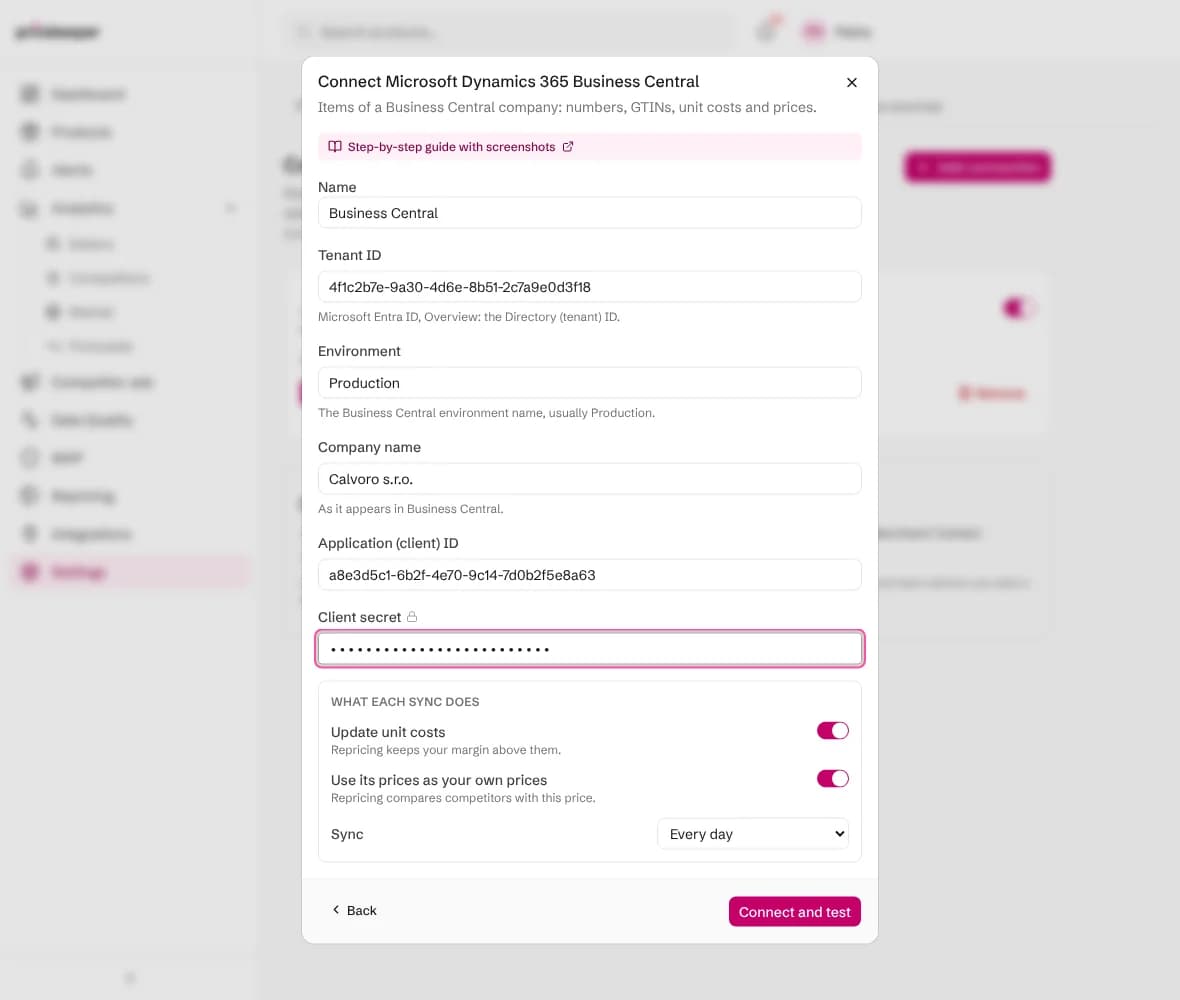
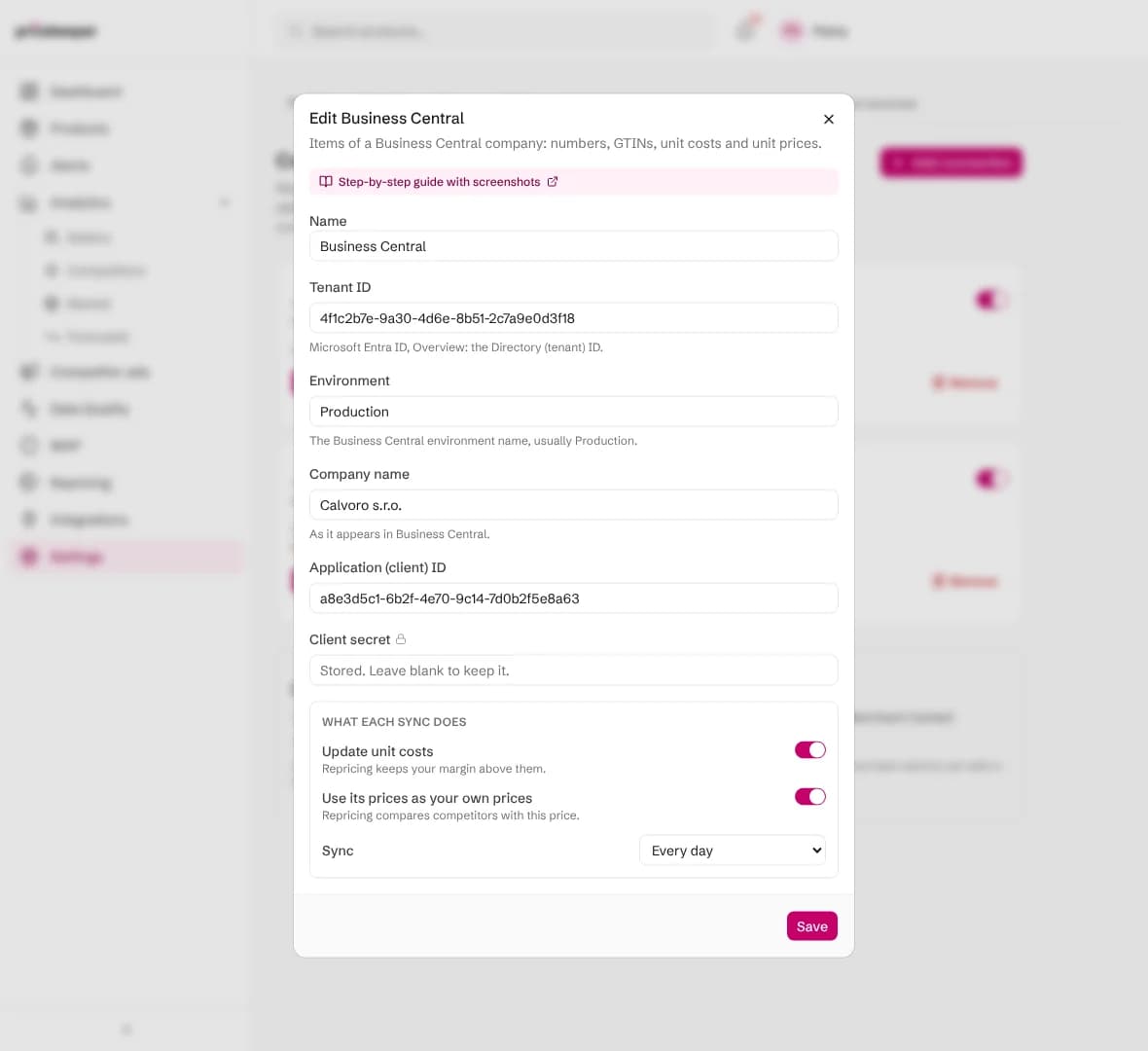
Fill in the Tenant ID, the Environment (usually Production), the Company name as Business Central shows it, the Application (client) ID and the Client secret.
Choose what each sync does
Update unit costs uses the item's unit cost; Use its prices as your own prices uses its unit price, in the company's local currency.
Connect and test
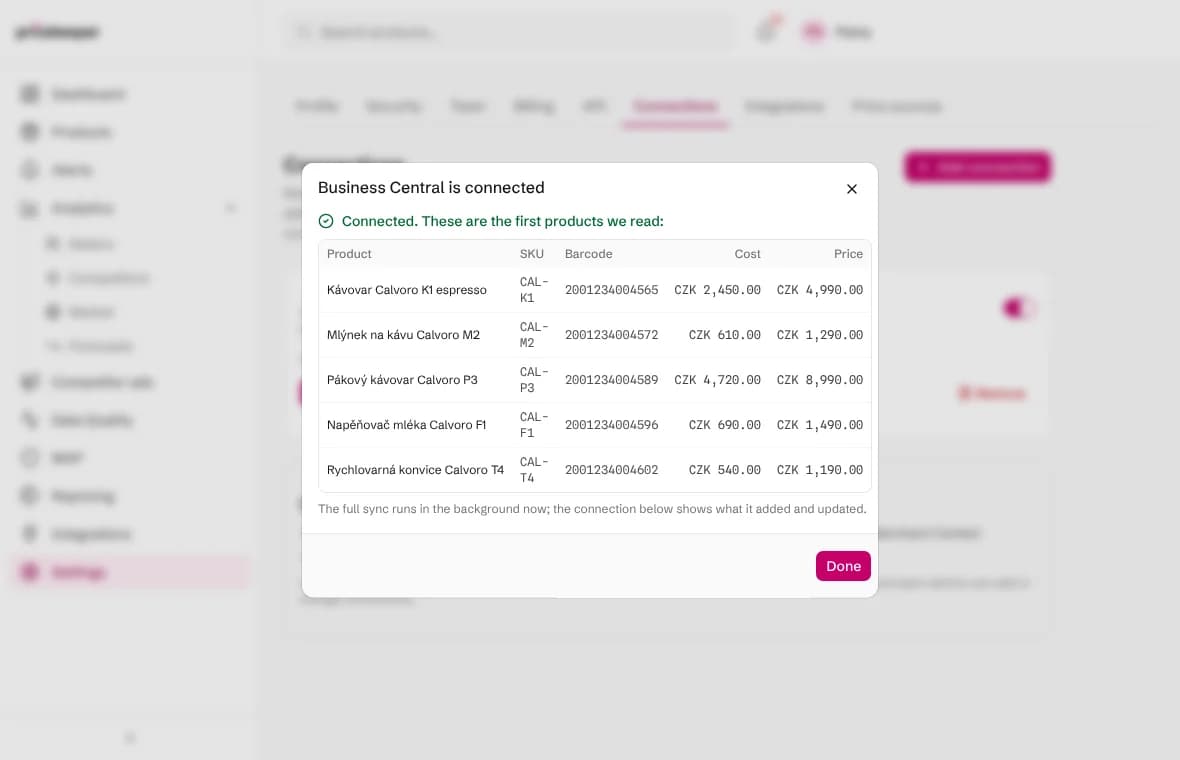
Choose Connect and test. Pricebeeper signs in, reads the first products and shows them with their codes, barcodes, costs and prices, so you can check them before the full sync runs in the background.
What a sync changes
Each sync reads every product Business Central lists and finds the matching product in your catalog: first by product code (SKU), then by barcode (EAN or GTIN). A code or barcode that several of your products share matches none of them, so a duplicate never gets the wrong cost.
- Unit cost replaces the cost Pricebeeper had, when Update unit costs is on. Repricing keeps every suggestion above the margin floor it sets.
- Your own price becomes the price competitors are compared with, when Use its prices as your own prices is on.
- Codes and barcodes fill in where a product had none, which helps Pricebeeper find the exact product at other sellers.
- Products that match nothing are counted and listed on the connection, so you can see what is missing from your catalog.
Pricebeeper reads items a thousand at a time, following Business Central's own paging. Items without a number are skipped. Prices are read in the company's local currency.
A sync never deletes, renames or moves anything, and it reads only: Pricebeeper writes nothing back to your system. Approved prices reach your store only through a store you connect for repricing.
Step 4: Check the results
The connection shows when it last synced, how many items it read and updated, and how many matched nothing in your catalog. Repricing then works from each product's unit cost and your own price; the getting started guide covers monitoring and alerts.

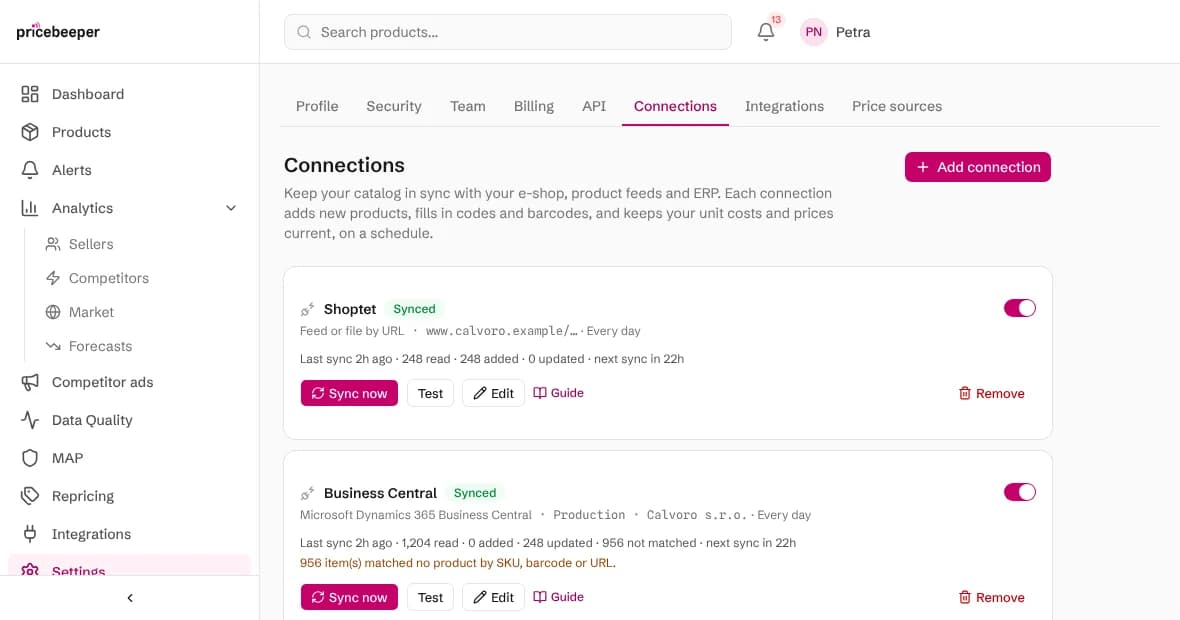
With costs and prices current, repricing keeps every suggestion above your margin floor.
When a sync fails
| Message | What to do |
|---|---|
| The login, key or token was refused | Check the tenant ID, client ID and secret. An expired client secret is the usual cause: create a new one in Entra and paste it with Edit. |
| The key works but isn't allowed to read products | On the Microsoft Entra Applications page, check that the application is Enabled and has a permission set that reads items. |
| Nothing was found at that address | Check the environment and company names: they must match Business Central exactly, apart from capital letters. |
| The source asked us to slow down | Nothing: the next scheduled sync tries again. If it keeps happening, choose a weekly sync. |
| The source had an error on its side | Nothing at first: the next sync tries again. If it fails for days, check the system's status page. |
After ten failed scheduled syncs in a row a connection pauses itself, so it stops trying with details that no longer work. Fix the setting with Edit, then switch it back on.
Questions people ask
Why does the permission say ReadWrite?
Business Central's API has a single application permission for all calls. What the application can actually read or change is set by the permission sets you assign in Business Central, so give it read-only sets.
Does it work with Business Central on-premises?
Only when your on-premises installation signs in with Microsoft Entra ID and accepts calls for the Business Central API's address. Otherwise, use a scheduled export instead.
How are my keys and passwords stored?
Encrypted, and never shown again, not even to you: the connection shows only a short hint. Only the account owner and team admins can add or change connections, and they are sent only to the address you entered.
Does Pricebeeper change anything in my system?
No. Connections only read. Give the access the least rights that let it read products and prices, and Pricebeeper can never change your data.
Does a connection use my plan's slots?
No. Slots are used only when you attach a product to a region to monitor it. Connections keep your catalog's codes, costs and prices current on every plan.
Related features
- 01RepricingRules turn competitor prices into suggested prices within your limits; you approve, and your store is updated.
- 02Catalog importLoad your whole catalog from Shopify, WooCommerce, a Merchant Center feed, CSV or URLs, then choose what to monitor.
- 03Teams and securityOwner, admin, member and viewer roles, two-factor and Google sign-in, and company SSO on Business and Custom.
Last reviewed