Before you start
You need to be a member of the Teams channel that should receive the alerts and be allowed to use the Workflows app there; most organisations allow it. In Pricebeeper you need the owner or admin role in the account, because an integration sends your data to another service.
Microsoft retired the older Office 365 connector webhooks in Teams in May 2026, and their addresses no longer work. Pricebeeper accepts only workflow links, which is what the steps below create.
Step 1: Create the workflow in Teams
Open Workflows from the channel
In Teams, go to the channel that should receive alerts, open its More options (…) menu and choose Workflows.
Pick the webhook template
Search for Send webhook alerts to a channel and select it. Name the workflow Pricebeeper alerts.
Confirm the team and channel
Check that the team and channel are the ones you want, then choose Save (or Add workflow).
Copy the link
Teams shows the workflow's link (a long address on powerplatform.com). Copy it. Anyone with this link can post to the channel, so treat it like a password.
Step 2: Add it in Pricebeeper
Add an integration
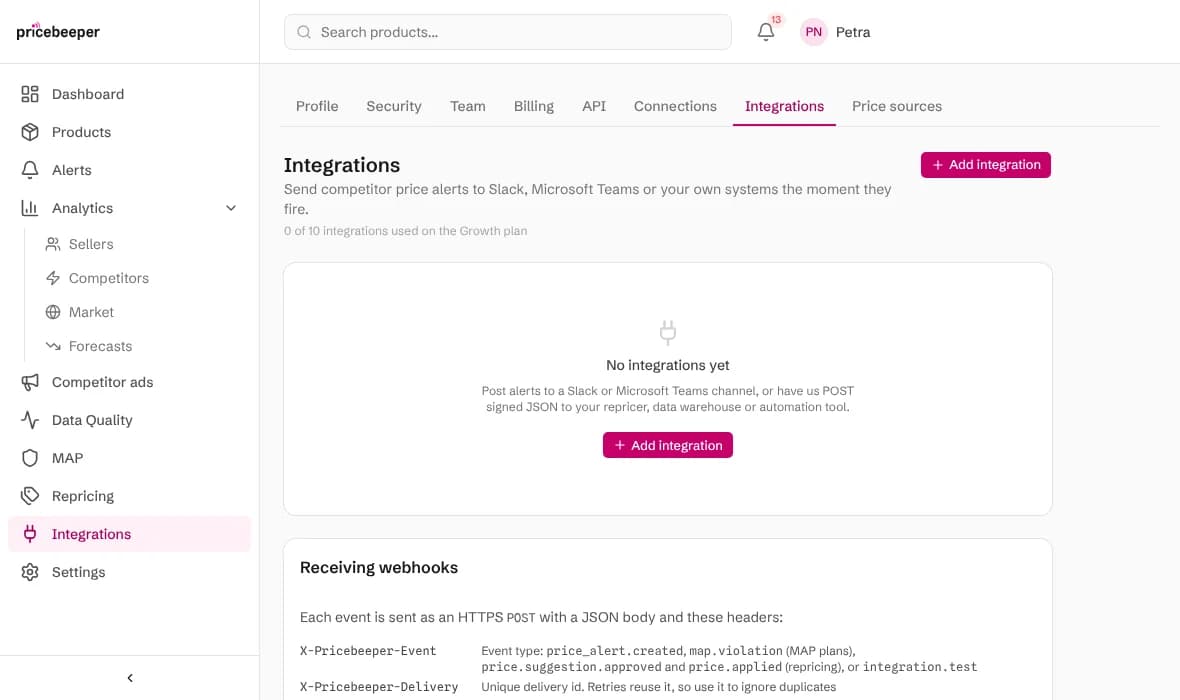
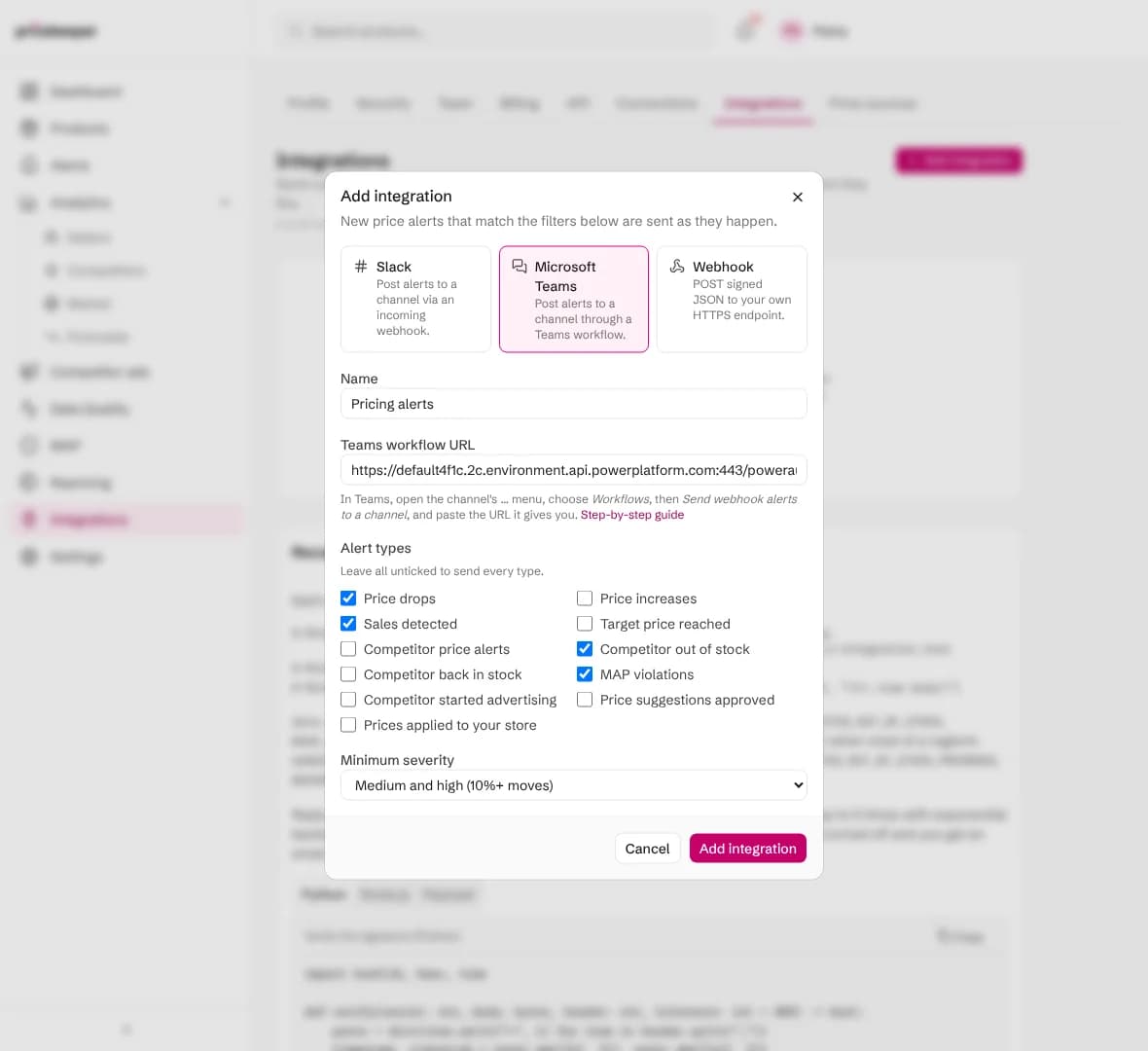
In Pricebeeper, open Settings, Integrations, choose Add integration and pick Microsoft Teams.
Name it and paste the link
Give it a name you'll recognise, such as the channel's name, and paste the workflow link into Teams workflow URL.
Choose what to send
Tick the alert types the channel should get, or leave them all unticked for every type. Minimum severity keeps out small moves: medium sends price moves of 10% and more, high 20% and more.
Save
Choose Add integration. New alerts that match go to the channel from now on.
Step 3: Send a test
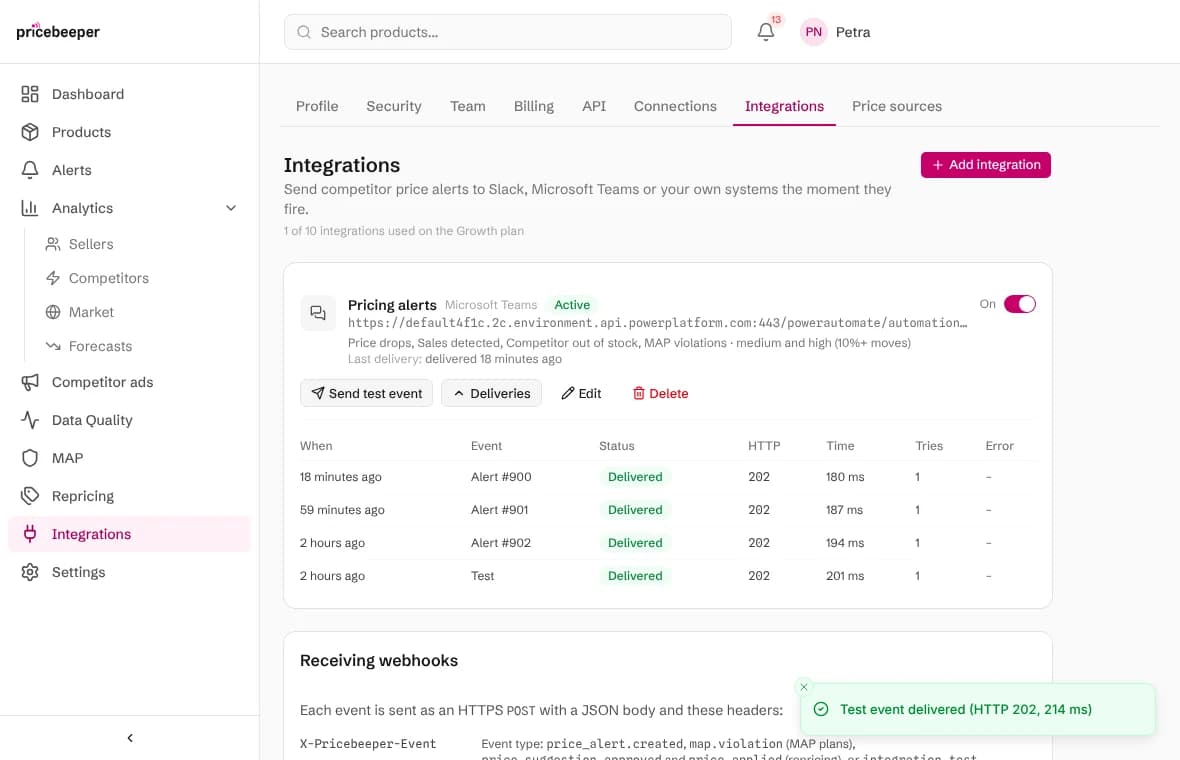
Choose Send test event on the integration. A sample alert appears in the channel within a few seconds, and Pricebeeper confirms that Teams accepted it.
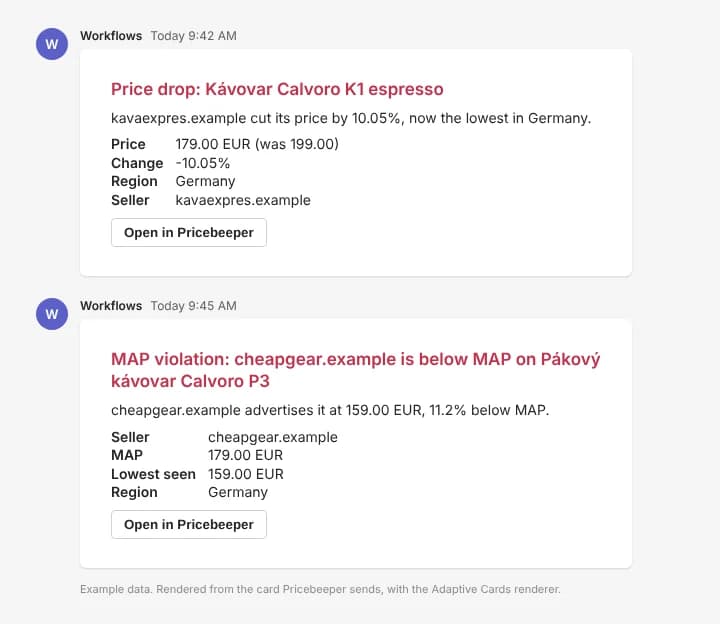
Each alert arrives as a card: the kind of alert and the product as its title, coloured by how big the move is, then the new and previous price, the change, the region and the seller, and a button that opens the product in Pricebeeper.
Check what was sent
Deliveries on the integration lists the last fifty alerts sent, when, and whether Teams accepted them. A delivery that fails is retried five times over about a quarter of an hour. After five alerts in a row fail that way, the integration switches itself off and the account owner gets an email, so a deleted workflow doesn't fail silently for weeks. Fix the cause, then switch it back on.
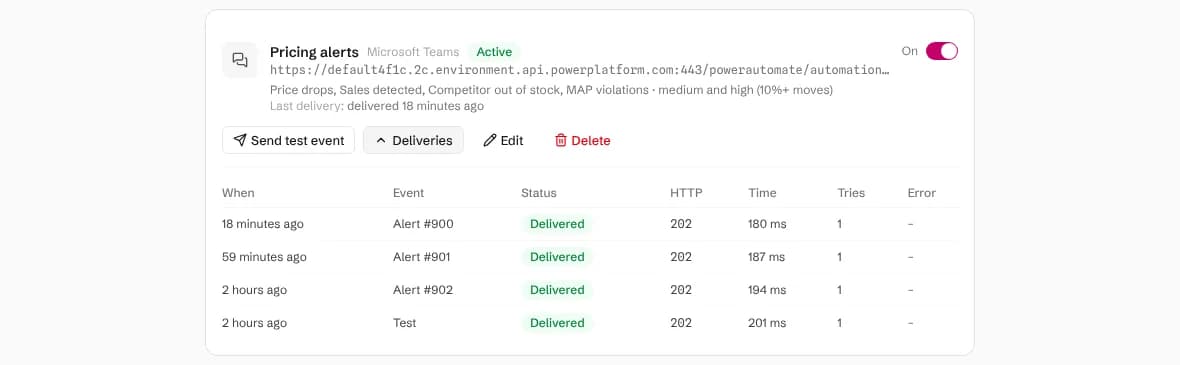
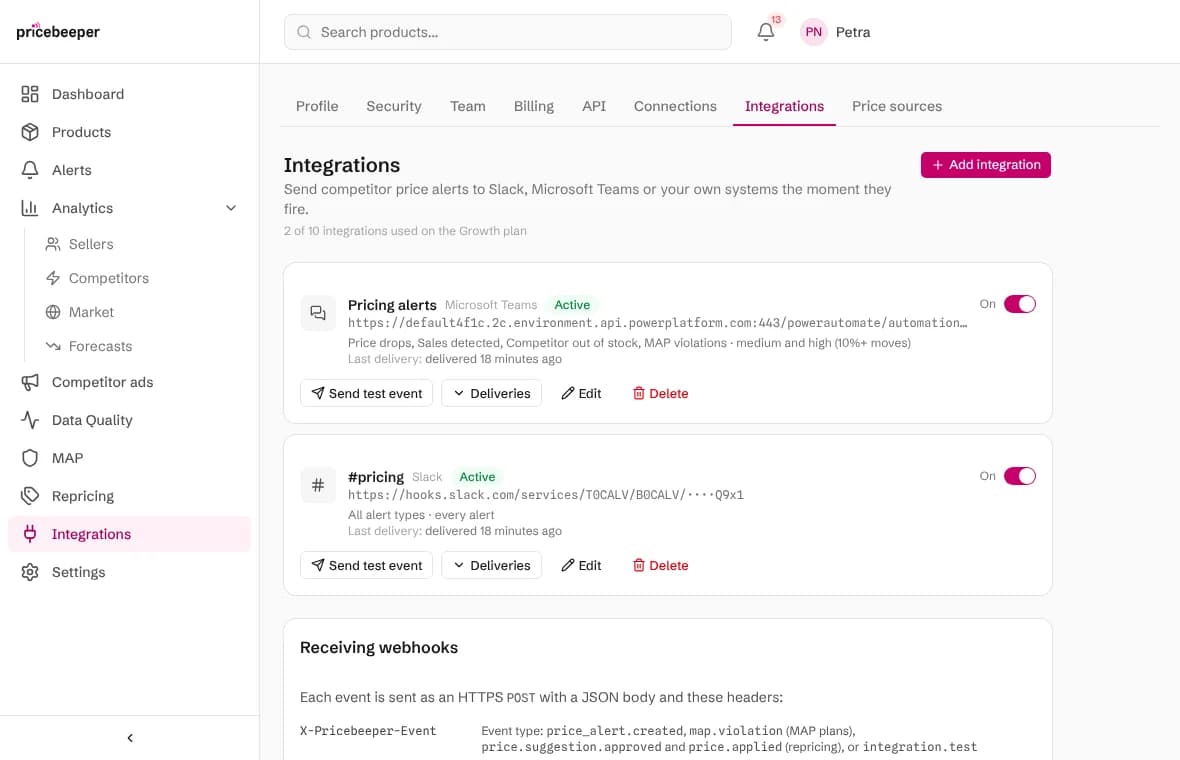
Alerts reach the channel in addition to your email, not instead of it. To stop alert emails for people who follow the channel, each person can change their own email preferences under Settings, Profile. The price alerts feature explains every alert type.
Which alerts to send to the channel
A channel that gets every small move soon gets muted. Most teams start narrow and widen it once they trust it. A few setups that work well:
- The pricing channel: price drops and sales of medium severity and up, so a 10% cut by a competitor gets seen the same morning.
- The buying or stock channel: competitor out of stock and back in stock alerts. When rivals sell out, you can often hold or raise your price; stock alerts explain how they're decided.
- The brand or sales channel: MAP violations only, so whoever talks to resellers sees each breach with its evidence. See MAP monitoring.
- The shop managers' channel: prices applied to your store, when repricing changes a price, so nobody is surprised by it.
Alerts only exist for products you monitor. If the channel stays quiet, check that your products are attached to a region, as the getting started guide shows.
When alerts don't arrive
| What you see | What to do |
|---|---|
| The link is refused when you save | It isn't a workflow link. Copy the link from the Send webhook alerts to a channel workflow; links from the retired Office 365 connectors don't work. |
| Deliveries fail with HTTP 404 | The workflow was deleted or turned off. Turn it on in the Workflows app, or create a new one and paste its link with Edit. |
| Deliveries fail with HTTP 401 or 403 | The workflow's owner lost access to the channel. Recreate the workflow with someone who is a member. |
| Deliveries succeed but nothing shows | Open the workflow's run history in the Workflows app: an error there usually means the channel was renamed or removed. |
| Too many messages | Raise the minimum severity or untick alert types. Through the API, an integration can also be limited to chosen products or regions. |
Questions people ask
Can different channels get different alerts?
Yes. Create one workflow per channel and one integration for each in Pricebeeper, each with its own alert types and severity. Paid plans include ten integrations.
Can I send alerts to a chat instead of a channel?
Yes. Teams offers webhook templates that post to a group chat as well; create the workflow from the chat's menu and paste its link the same way.
Does it work with private channels?
Yes. Workflows can post to private channels; create the workflow from that channel.
Is the link stored safely?
The link is shown masked after you save it and can only be replaced, not read back. Only the account owner and team admins can add or change integrations. Adding one also needs a confirmed email address.
Can I use Slack or my own system instead?
Yes, from the same page: pick Slack, or a webhook that sends signed JSON to your own endpoint. The Zapier and Make guide shows how to pass alerts on to other tools.
Related features
- 01Price and sale alertsAn alert when a competitor cuts or raises a price, starts a sale, or reaches the target price you set.
- 02API and integrationsA REST API on every plan, CSV exports, Slack, Microsoft Teams and signed webhooks, and an MCP endpoint for AI agents.
- 03MAP monitoringFind resellers advertising below your minimum advertised price, with a hashed record of what was seen.
Last reviewed